Tuesday, September 20, 2016

Creating Parameterised Report in eclipse


Creating Parameterised Report in eclipse


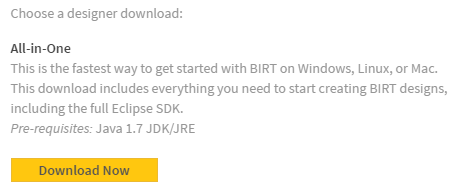
1.       So firstly we need to download the neon with BIRT in the following link http://download.eclipse.org/birt/downloads/ and Click on Download Now under All in One


2.       After successfully download of the IDE you will have a file name called eclipse-reporting-neon-R-win32-x86_64 unzip the file and Click on eclipse.exe

Then it will show as


3.       Go to New -> Others -> Business Intelligence and Reporting Tool and Select Report Project as below


4.       Click on next and Give a name for the Project and it prompts to change the perspective click on yes. Now we can see the IDE like this.


5.       Right Click on Project Test and New -> Report and screen should be like this


6.       Now after this we can see like


7.       So we can adjust the width and height of report by going to MasterPage tab which is down of the report


8.       Go back to Layout. And to the left corner top you can see a tab Data Explorer Beside Pallaete tab Click on it


9.       Right Click on Datasources to Setup the New DataSource


10.   Here choose the driver which you want here I am using Mongodb. So Choose MongoDB Data Source and click on next.
11.   Enter the host, database name, port number, username, password and click on Test connection.


12.   It should show test ping successful.
13.   Then we should create dataset for this go to Data Explorer and right click on Dataset


14.   Click on next and select the collection name and below you can see the available fields and we can move which ever fields you want.


15.   Click on Finish and Ok.
16.   Now we need to create a parameter for the report so in dataexplorer right click on report parameters and it will show up
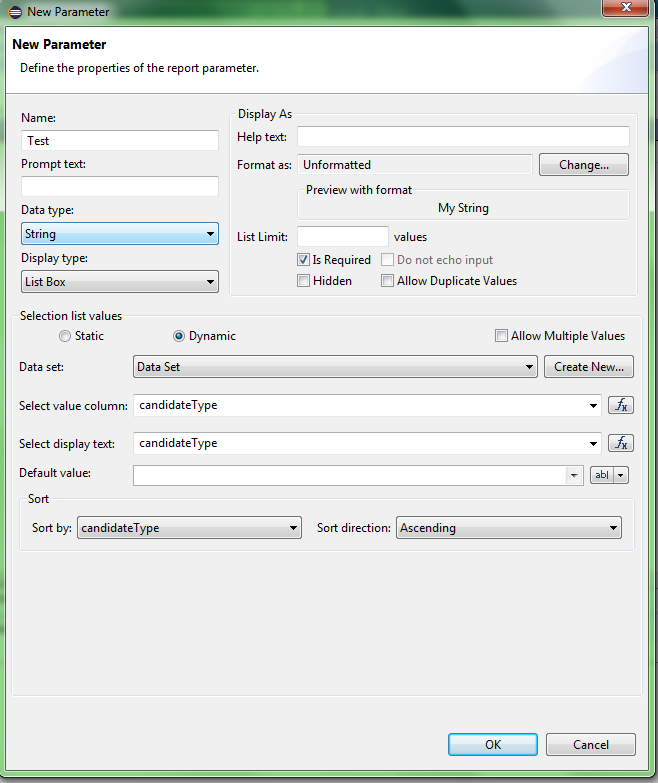


17.   Select the fields which ever you want to display. And click on the ok.
18.   Now we have Data source, Dataset and Parameter.
19.   Now we will attach the filter to the Dataset. Go to Data Explorer and right Click on the dataset click, on edit click on filters.


20.   Click on new and it will show up like this and select the column to which we need to filter the data with parameter.


21.   Choose equal to and in the second dropdown click on the build expression


22.   AS shown in the above select the parameter and then click on ok.


23.   Click on ok. Now that we have all the data and we need to populate to the report so in order to do it we should drag a table from palette and drop into the report


24.   Select the dataset in the dropdown and select the required fields and click on ok. Then we can see this table.


25.   Now save the report and we need to check the report by running the report in the eclipse ide Go to Run -> View Report -> Web Viewer it will display this


26.   Select the field and the report will be displayed and we can export it into PDF, Excel and word. Hurrah...!


1.       This is a simple example and we can explore more and do the complex once also. Enjoy Reporting…

BIRT Viewer in Tomcat


BIRT Viewer in Tomcat


BIRT is a powerful and open source reporting tool in java and its easy and compatible.
To install BIRT viewer firstly we should have tomcat server, if you don’t have please download the tomcat from https://tomcat.apache.org/download-80.cgi and it’s better to use a binary distribution rather installer.
After configuring tomcat, we should download the birt viewer.
And Download the file under “Report Engine OSGi Deployment” file named
birt-runtime-osgi-4.6.0-20160607.zip
After successful download of the file, Unzip the file and you can see all the files as below.


Steps to be down after downloading the file.
1.       Now the birt.war file should be copied into tomcat webapps.
2.       And copy the jar files into tomcat lib.
If you are using mysql database, you should put mysql-connector-java-5.1.30.jar
If you are using mongodb database so you should put mongodb-driver-3.3.0.jar
Finally, we should copy commons-logging-1.2.jar
3.       We should unzip the birt.war and place in a folder of the name you want. Here I placed in birt folder.
4.       For Mongo DB users We should go to apache-tomcat-7.0.42\webapps\birt\WEB-INF\platform\plugins and need to remove org.eclipse.birt.data.oda.mongodb_4.6.0.v201606072122.jar and need to update the new one with mongo-java-driver-2.13.1.jar
And that’s it the configuration has been done.

Now we need to check the birt in tomcat.
1.       Go to tomcat bin directory and start the tomcat by using startup batch file.
2.       And open the browser and type in http://localhost:8080/birt/
3.       You can see the page as below.


4.       So, birt has been installed in tomcat now.
5.       And we can check the sample report by clicking on the link View Example on the same page we can see


6.       Now we will check the report which we have made in eclipse. So, we should place our files in the tomcat/weapps/birt/test1.rptdesign

Now you can see the report


8.       Now we can place as many reports as we want and see on the server also.


Happy Coding with BIRT… Enjoy!!


Maven Plugin Installation Steps in Eclipse


Maven Plugin Installation Steps


First in eclipse go to Help -> Install New Software


And Then click on Add and type in
Name = Maven or whatever name you like


And It will load the available plugins and select all of them as below


And Click on next


Click on next


Click on I accept and click on next


And the Plugin will be installed.

After successful installation IDE prompts to restart. Please restart the system and after restart you can see the convert to Maven and we can also see maven project in new.


Enjoy Maven.

Wednesday, September 7, 2016

Setting up BIRT in eclipse


BIRT Installation


To install BIRT we have two scenarios like
I.                     We can directly download BIRT included Eclipse
II.                   We can install Plugin in the Eclipse we have

BIRT Included eclipse Downloading steps
Go to the link http://download.eclipse.org/birt/downloads/ and Click on All in one


BIRT Plugin Installation Steps

1       Open Eclipse
2       Go to Help and Click on Install New Software
3       In the menu Click on Add button then we should add the details like below


4      Click Ok.
5       The below Screen will display


6    Select all and click on Next.
        And accept the license agreement.
8      And installation will start


 After successful installation you can see the Birt files in the file menu.

 Enjoy Doing Reports...

Have a Good Day.... :)